Fedora Atomic Setup Guide
A Quickstart Guide to Fedora Atomic Desktops (Silverblue, Kinoite) and Asus-Linux
This guide covers the Fedora Atomic Desktops (Silverblue, Kinoite, Sway Atomic, Budgie Atomic, COSMIC Atomic), which use rpm-ostree for package layering. If you use a Universal Blue image such as Bazzite, see the Bazzite guide instead.
Contents
Installation
Note
Official Fedora packages are maintained by Fyra Labs, the creators of Ultramarine Linux, in Terra repository: they are part of OGC as asus-linux is.
Read the Intro guide first to avoid bad surprises.
Enabling the Terra Repository
ASUS Linux packages and tools are currently packaged on the Terra Repository for Fedora. Add the Terra repo with the following commands:
curl -fsSL https://raw.githubusercontent.com/terrapkg/packages/f$(rpm --eval '%{fedora}')/anda/terra/release/terra.repo | pkexec tee /etc/yum.repos.d/terra.repo
sudo rpm-ostree install terra-release terra-gpg-keys
Asusctl
This section covers installing asusctl and its supporting software. This enables controls for the Asus ROG hardware on the laptop.
sudo rpm-ostree install asusctl
asusd manages platform profiles and CPU EPP settings itself. Running an external power management daemon (such as power-profiles-daemon or tuned) alongside asusd can cause race conditions and contention over the platform profile and EPP preferences. You have two options:
- Let
asusdmanage profiles and disable the external daemon. Since Fedora 41,tunedis the default power profile daemon. Note that KDE Plasma’s PowerDevil can respawnpower-profiles-daemonthrough DBus activation even after it is disabled, so be sure to mask it instead:
sudo systemctl mask --now power-profiles-daemon.service
# or, if you use tuned:
sudo systemctl mask --now tuned.service tuned-ppd.service
- Keep the external daemon and disable
asusd’s profile management by setting the following tofalsein/etc/asusd/asusd.ron:
change_platform_profile_on_ac: false,
change_platform_profile_on_battery: false,
platform_profile_linked_epp: false,
See issue #264 for details.
ROG Control Center
ROG Control Center is a GUI tool for configuring few aspects of asusctl. After adding the Terra repository as described above, you can now install the tool:
sudo rpm-ostree install asusctl-rog-gui
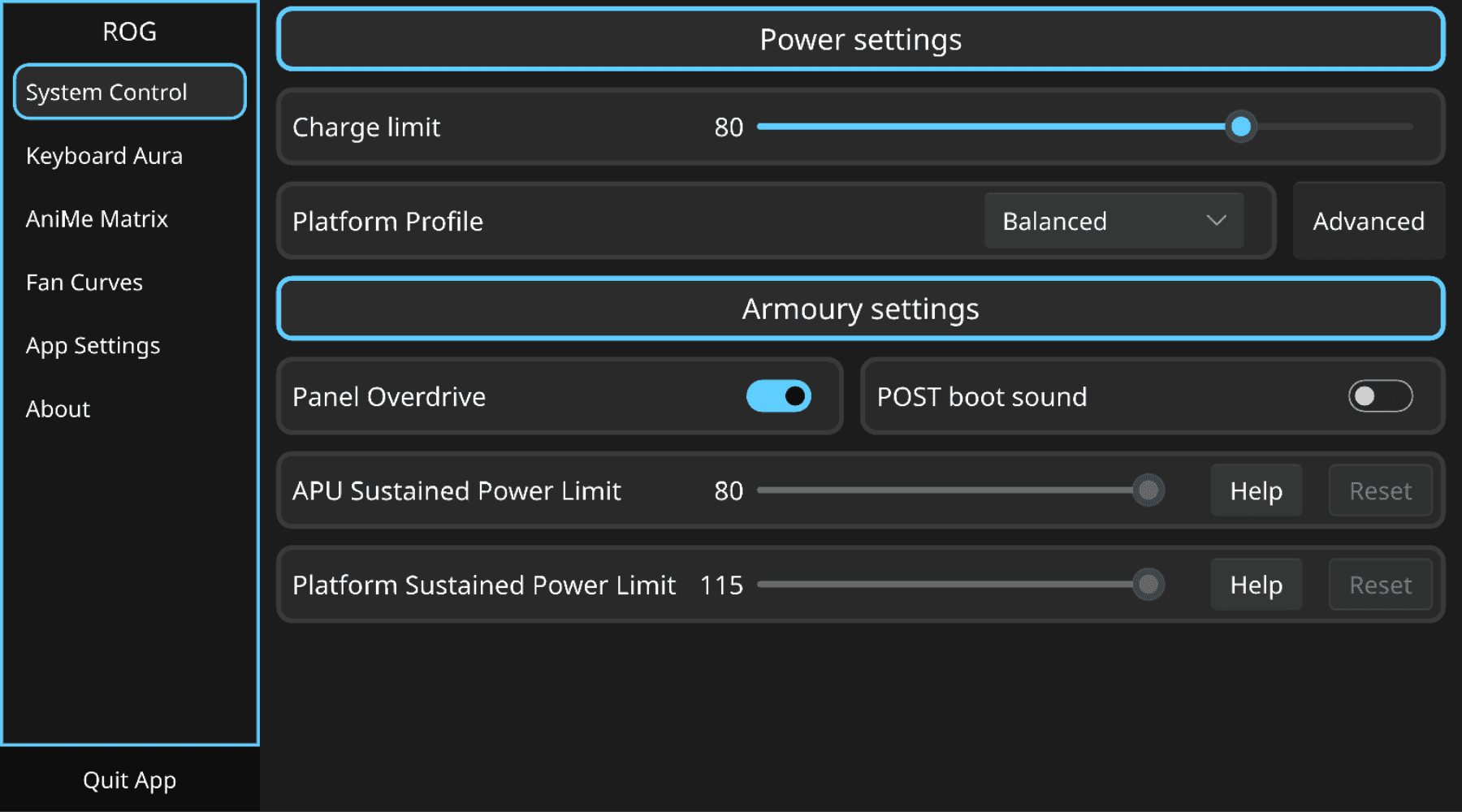
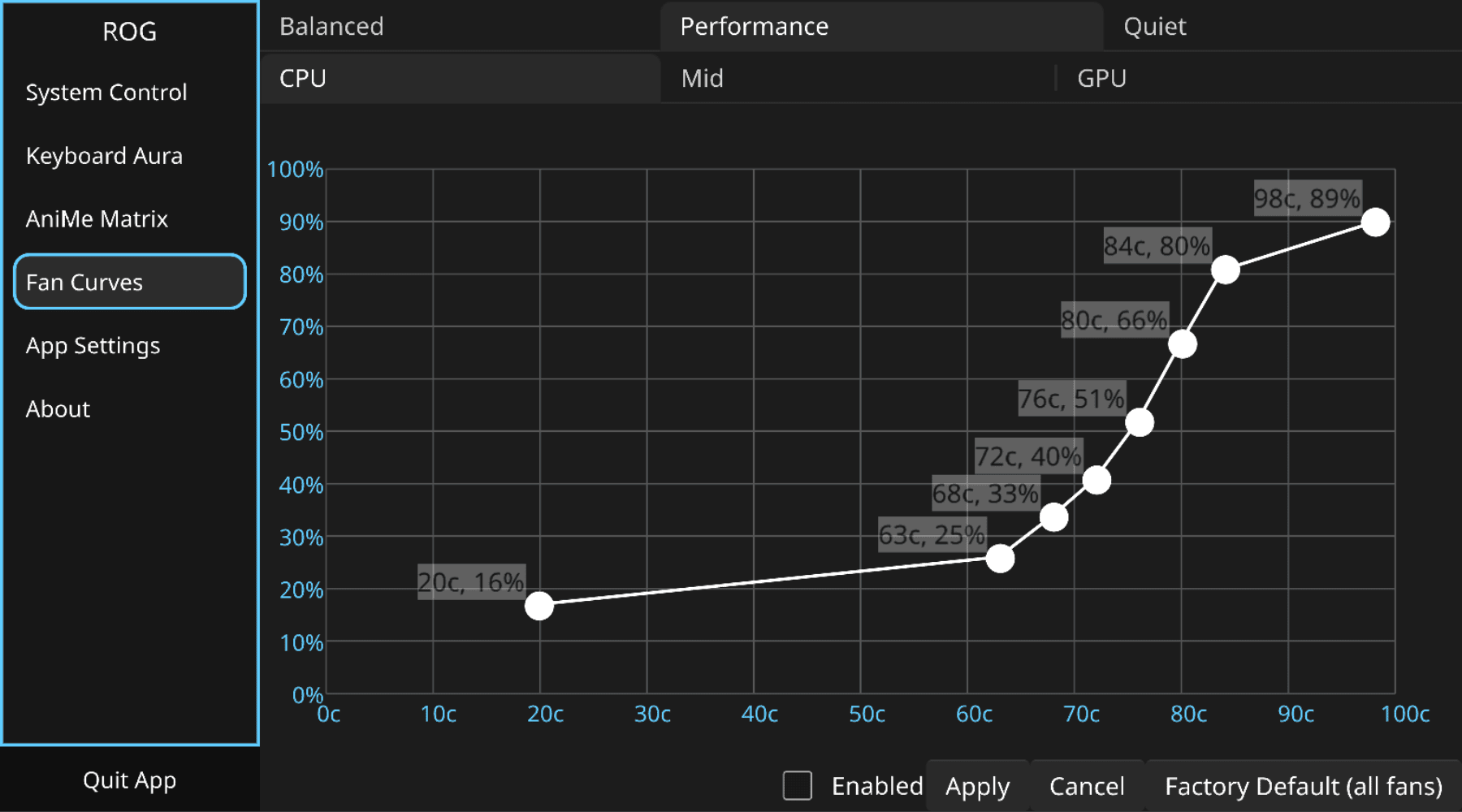
now reboot your system to apply the changes
Graphics Switching
See GPU Switching for how to manage the dGPU and MUX.
After rebooting
The asusd service is triggered by a udev rule after the keyboard driver is ready, so it does not need to be enabled and is not supposed to be. You can check its status with:
systemctl status asusd.service
Optional Steps
Installing RPM Fusion
Usually, when you enable third-party repositories, RPM-Fusion is enabled automatically. However, if it is not, you can follow this guide.
sudo dnf install https://mirrors.rpmfusion.org/free/fedora/rpmfusion-free-release-$(rpm -E %fedora).noarch.rpm https://mirrors.rpmfusion.org/nonfree/fedora/rpmfusion-nonfree-release-$(rpm -E %fedora).noarch.rpm
Hardware Accelerated codecs
The Atomic versions of Fedora do not include codecs in the system image, because these distros are focused on modifying as little as possible to ensure stability. It is recommended to use Flatpak, Distrobox, Toolbox, or any other type of container, as these do not share codecs with the system and prevent you from having to install them. However, if you want to install them, you can follow this guide but remember install RPM-Fusion repos first.
Tip
Universal Blue and its images already include the codecs in the system, so it is not necessary to perform these procedures.
Flatpak Cleaning
In order to streamline our dependency on flatpak it is worthwhile to have everything working with the same fundamentals.
flatpak remote-delete fedora
flatpak remote-add --if-not-exists flathub https://flathub.org/repo/flathub.flatpakrepo
The steps above will uninstall the packages from the Fedora remote, so the following command will install the Flathub versions instead (Apply only on Silverblue version).
flatpak install org.gnome.Calculator org.gnome.Calendar org.gnome.Characters org.gnome.Connections org.gnome.Contacts org.gnome.Papers org.gnome.Logs org.gnome.Loupe org.gnome.Maps org.gnome.NautilusPreviewer org.gnome.Snapshot org.gnome.Weather org.gnome.baobab org.gnome.clocks org.gnome.font-viewer org.gnome.Showtime org.gnome.TextEditor org.gnome.Decibels
Replace Firefox RPM with Flathub Flatpak and Force Wayland
sudo rpm-ostree override remove firefox firefox-langpacks
flatpak install flathub org.mozilla.firefox org.freedesktop.Platform.ffmpeg-full
Nvidia
Nvidia in Atomic versions requires key enrollment. However, you may need to repeat this process after an update, although you can use this, so below you will find two options.
Recommended approach
The recommended approach is to use or rebase Bazzite, Bluefin, Aurora, or a vanilla image of Universal Blue with the Nvidia driver already configured. If you rebase to Bazzite, see the Bazzite guide for installing asusctl.
If you want rebase follow this guide.
Manual approach
If you are unable or unwilling to use the method described above, you can follow these steps:
Add RPM-Fusion repos:
sudo rpm-ostree install --apply-live https://mirrors.rpmfusion.org/free/fedora/rpmfusion-free-release-$(rpm -E %fedora).noarch.rpm https://mirrors.rpmfusion.org/nonfree/fedora/rpmfusion-nonfree-release-$(rpm -E %fedora).noarch.rpm
Note
If your laptop has an NVIDIA card older than Turing, the repo to install is Negativo17.
Install Nvidia drivers:
sudo rpm-ostree install akmod-nvidia xorg-x11-drv-nvidia xorg-x11-drv-nvidia-cuda
sudo rpm-ostree kargs --append=rd.driver.blacklist=nouveau,nova_core --append=modprobe.blacklist=nouveau,nova_core
Wait for the module to be built, then reboot:
sudo systemctl reboot
After booting, verify that the NVIDIA driver is loaded:
nvidia-smi